·5 min read
Passing the CKA exam
Tips and personal experience
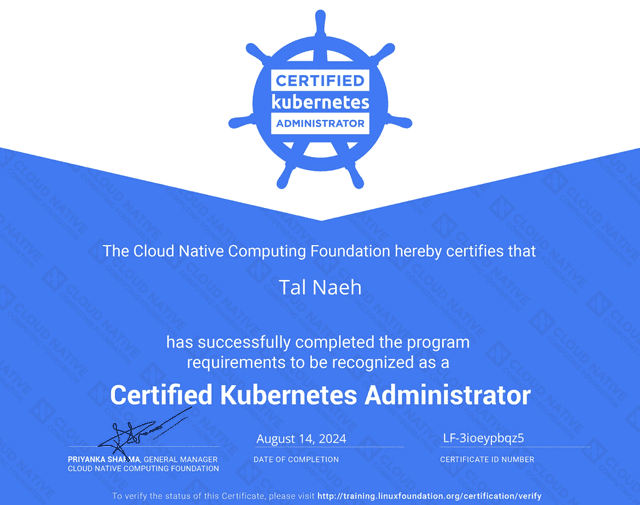
Passing the Certified Kubernetes Administrator (CKA) exam was a significant milestone in my career. The journey wasn't easy, but the reward of understanding Kubernetes at a deeper level made it worthwhile. In this post, I'll share some of the key tasks I faced during the exam, along with tips on how to approach them effectively.
Key Questions from the CKA Exam
The CKA exam is known for being hands-on, requiring candidates to solve real-world scenarios. Here are some of the tasks I encountered during the exam:
1. Add an Init Container to a Pod
Question: Add an init container to the pod hungry-bear that creates an empty file /workdir/calm.txt. If the file isn’t detected, the pod should exit.
Explanation: Init containers run before the main containers and can be used to perform initialization tasks such as file creation. For more details, refer to the Init Containers documentation.
<span class="line"><span>apiVersion: v1</span></span>
<span class="line"><span>kind: Pod</span></span>
<span class="line"><span>metadata:</span></span>
<span class="line"><span>  name: hungry-bear</span></span>
<span class="line"><span>spec:</span></span>
<span class="line"><span>  volumes:</span></span>
<span class="line"><span>  - name: workdir</span></span>
<span class="line"><span>    emptyDir: {}</span></span>
<span class="line"><span>  containers:</span></span>
<span class="line"><span>  - name: checker</span></span>
<span class="line"><span>    image: alpine</span></span>
<span class="line"><span>    command: ["/bin/sh", "-c", "if [ -f /workdir/calm.txt ]; then sleep 10000; else exit 1; fi"]</span></span>
<span class="line"><span>    volumeMounts:</span></span>
<span class="line"><span>    - name: workdir</span></span>
<span class="line"><span>      mountPath: /workdir</span></span>
<span class="line"><span>  initContainers:</span></span>
<span class="line"><span>  - name: create</span></span>
<span class="line"><span>    image: alpine</span></span>
<span class="line"><span>    command: ["/bin/sh", "-c", "touch /workdir/calm.txt"]</span></span>
<span class="line"><span>    volumeMounts:</span></span>
<span class="line"><span>    - name: workdir</span></span>
<span class="line"><span>      mountPath: /workdir</span></span>
To apply this pod configuration:
<span class="line"><span>kubectl apply -f hungry-bear.yaml</span></span>2. Upgrading Kubernetes Components
Question: Upgrade the Kubernetes control plane and node components on the master node from version 1.30.0 to version 1.30.1.
Explanation: The upgrade process involves draining the node, upgrading the components, and uncordoning the node after the upgrade.
Refer to the Kubernetes documentation for more details on Version Upgrades.
<span class="line"><span>kubectl cordon k8s-master</span></span>
<span class="line"><span>kubectl drain k8s-master --delete-local-data --ignore-daemonsets --force</span></span>
<span class="line"><span>sudo apt-get install -y kubeadm=1.30.1-00 kubelet=1.30.1-00 kubectl=1.30.1-00</span></span>
<span class="line"><span>sudo kubeadm upgrade apply v1.30.1 --etcd-upgrade=false</span></span>
<span class="line"><span>sudo systemctl daemon-reload</span></span>
<span class="line"><span>sudo systemctl restart kubelet</span></span>
<span class="line"><span>kubectl uncordon k8s-master</span></span>
3. Creating Kubernetes Secrets and Using Them in Pods
Question: Create a secret named super-secret with the password bob and use it in two different pods: one as a file mount and the other as an environment variable.
Explanation: Kubernetes secrets can be mounted as files or exposed as environment variables. For more information, check out the Kubernetes documentation on ConfigMaps and Secrets.
<span class="line"><span>kubectl create secret generic super-secret --from-literal=password=bob</span></span>To use this secret in a pod as a file mount:
<span class="line"><span>apiVersion: v1</span></span>
<span class="line"><span>kind: Pod</span></span>
<span class="line"><span>metadata:</span></span>
<span class="line"><span>  name: pod-secrets-via-file</span></span>
<span class="line"><span>spec:</span></span>
<span class="line"><span>  containers:</span></span>
<span class="line"><span>  - name: redis</span></span>
<span class="line"><span>    image: redis</span></span>
<span class="line"><span>    volumeMounts:</span></span>
<span class="line"><span>    - name: secret-volume</span></span>
<span class="line"><span>      mountPath: /secrets</span></span>
<span class="line"><span>  volumes:</span></span>
<span class="line"><span>  - name: secret-volume</span></span>
<span class="line"><span>    secret:</span></span>
<span class="line"><span>      secretName: super-secret</span></span>
To use this secret in a pod as an environment variable:
<span class="line"><span>apiVersion: v1</span></span>
<span class="line"><span>kind: Pod</span></span>
<span class="line"><span>metadata:</span></span>
<span class="line"><span>  name: pod-secrets-via-env</span></span>
<span class="line"><span>spec:</span></span>
<span class="line"><span>  containers:</span></span>
<span class="line"><span>  - name: redis</span></span>
<span class="line"><span>    image: redis</span></span>
<span class="line"><span>    env:</span></span>
<span class="line"><span>    - name: CONFIDENTIAL</span></span>
<span class="line"><span>      valueFrom:</span></span>
<span class="line"><span>        secretKeyRef:</span></span>
<span class="line"><span>          name: super-secret</span></span>
<span class="line"><span>          key: password</span></span>
4. Creating a Non-Persistent Redis Pod
Question: Create a pod named non-persistent-redis using the redis image, with a volume named cache-control that is not persistent.
Explanation: Use an emptyDir volume for non-persistent storage that will be deleted when the pod is terminated. For more details, check out the documentation on setting requests and limits for ephemeral storage.
<span class="line"><span>apiVersion: v1</span></span>
<span class="line"><span>kind: Pod</span></span>
<span class="line"><span>metadata:</span></span>
<span class="line"><span>  name: non-persistent-redis</span></span>
<span class="line"><span>spec:</span></span>
<span class="line"><span>  containers:</span></span>
<span class="line"><span>  - name: redis</span></span>
<span class="line"><span>    image: redis</span></span>
<span class="line"><span>    volumeMounts:</span></span>
<span class="line"><span>    - name: cache-control</span></span>
<span class="line"><span>      mountPath: /data/redis</span></span>
<span class="line"><span>  volumes:</span></span>
<span class="line"><span>  - name: cache-control</span></span>
<span class="line"><span>    emptyDir: {}</span></span>
To apply this pod configuration:
<span class="line"><span>kubectl apply -f non-persistent-redis.yaml</span></span>5. Creating and Exposing a Deployment with DNS Lookups
Question: Create a deployment named nginx-random and expose it via a service. Ensure that the service and pods are accessible via their respective DNS records.
Explanation: Use a deployment to manage pods, and expose it through a service. Use nslookup to verify DNS resolution. Check out the Kubernetes documentation on Services and Types and CoreDNS.
<span class="line"><span>apiVersion: apps/v1</span></span>
<span class="line"><span>kind: Deployment</span></span>
<span class="line"><span>metadata:</span></span>
<span class="line"><span>  name: nginx-random</span></span>
<span class="line"><span>spec:</span></span>
<span class="line"><span>  replicas: 3</span></span>
<span class="line"><span>  selector:</span></span>
<span class="line"><span>    matchLabels:</span></span>
<span class="line"><span>      app: nginx</span></span>
<span class="line"><span>  template:</span></span>
<span class="line"><span>    metadata:</span></span>
<span class="line"><span>      labels:</span></span>
<span class="line"><span>        app: nginx</span></span>
<span class="line"><span>    spec:</span></span>
<span class="line"><span>      containers:</span></span>
<span class="line"><span>      - name: nginx</span></span>
<span class="line"><span>        image: nginx</span></span>
<span class="line"><span>kubectl expose deploy nginx-random --name=nginx-random --port=80 --target-port=80</span></span>
<span class="line"><span>kubectl run nslookup --image=busybox --rm -it -- nslookup nginx-random > /opt/KUNW00601/service.dns</span></span>6. Creating an Etcd Snapshot
Question: Create a snapshot of the etcd instance running at https://127.0.0.1:2379 and save it to /srv/data/etcd-snapshot.db.
Explanation: Use the etcdctl command to take a snapshot of the etcd database. More details can be found in the Kubernetes documentation on Etcd Backup and Restore.
<span class="line"><span>ETCDCTL_API=3 etcdctl --endpoints="https://127.0.0.1:2379" --cacert=/opt/KUCM00302/ca.crt --cert=/opt/KUCM00302/etcd-client.crt --key=/opt/KUCM00302/etcd-client.key snapshot save /srv/data/etcd-snapshot.db</span></span>7. Creating a Busybox Pod with a Sleep Command
Question: Create a busybox pod that runs a sleep 3600 command.
Explanation: Use the kubectl run command to create a pod that executes the sleep command for 3600 seconds.
<span class="line"><span>kubectl run busybox --image=busybox --restart=Never -- /bin/sh -c "sleep 3600"</span></span>8. Creating a ClusterRole and Binding It to a ServiceAccount
Question: Create a ClusterRole named deployment-clusterrole that allows creating Deployments, StatefulSets, and DaemonSets. Bind it to a ServiceAccount named cicd-token in the app-team1 namespace.
Explanation: Create a ClusterRole and bind it to the ServiceAccount using a RoleBinding. For more details, check the Kubernetes documentation on RBAC.
<span class="line"><span>kubectl create clusterrole deployment-clusterrole --verb=create --resource=deployments,statefulsets,daemonsets</span></span>
<span class="line"><span>kubectl create serviceaccount cicd-token --namespace=app-team1</span></span>
<span class="line"><span>kubectl create rolebinding deployment-clusterrole-binding --clusterrole=deployment-clusterrole --serviceaccount=app-team1:cicd-token --namespace=app-team1</span></span>
Tips for Success
Here are some tips that helped me succeed in the CKA exam:
- Practice with Real Scenarios: The exam is all about practical skills. Make sure you are comfortable with tasks like deploying applications, managing storage, and troubleshooting.
- Master YAML Files: Many tasks will require you to modify or create YAML files. Understanding Kubernetes objects and how to define them in YAML is crucial.
- Use Time Wisely: You’ll need to manage your time effectively. Prioritize tasks you’re confident with and come back to more challenging ones.
- Stay Calm Under Pressure: The exam can be intense, but staying calm and methodical will help you succeed.